Once a set of groups has been created, the following changes can be made:
changing the name of a category,
adding groups or
deleting groups from a category, and/or
changing the name of individual groups in a category. It is also possible to
restore deleted groups.
Unfortunately, how students are enrolled can not be changed. Instead a new set of groups should be created, and the old set should be deleted. See
Creating Groups for more information.
Change the Name of a Category
- Select
More from the course navigation bar.
- Select
Groups.
- A list of available categories is displayed. Select the
dropdown arrow next to the category name.
- Select
Edit Category.
- Change the name of the category in the "Category Name" field.
- Select Save.
Add a Group to a Category
- Go to the Groups area.
- A list of available categories is displayed. Select the
dropdown arrow next to the category name.
- Select
Add Group.
- The "Add Group" pop-up window will open.
- (Optional) Change the name of the group in the "Group Name" field.
- Select Save. The new group will appear in the list of groups within the category.
Delete a Category or a Group
- Go to the Groups area.
- A list of available categories is displayed. Select the
checkbox to the left of the name of the category or group to be deleted.
Note: If a category is deleted, all of its groups will also be deleted.
- Select Delete [A].
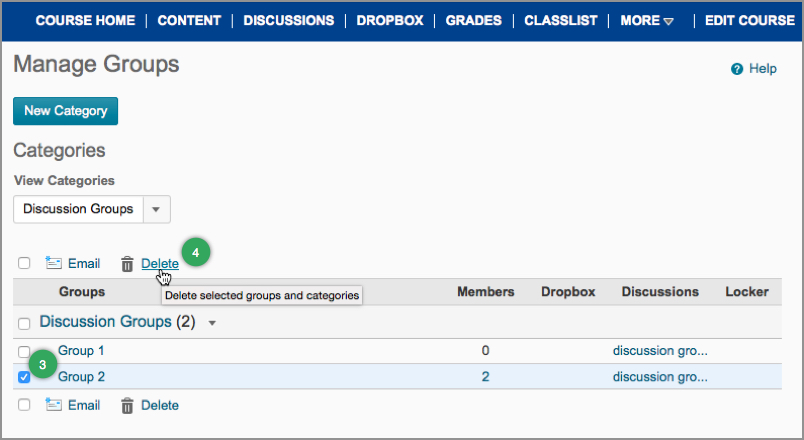
- A confirmation dialog box will open. Select
Delete Groups/Categories. The dialog box will close, and the category and/or group will be deleted.
Change the Name of a Group
- Go to the Groups area.
- A list of available categories is displayed. Select the
name of the Category.
- A list of Groups within the Category appears. Select the
name of the group.
- Edit the group name in the "Group Name" field.
- Select Save at the bottom of the page. The new group name will appear in the list of groups within the category.
Restoring Deleted Groups
- Go to the Groups area.
- Select
Recycling Bin.
- Select the checkboxes next to the groups and/or categories to restore.
- Select
Restore.
NEXT STEPS
After making changes to the groups, particularly if a new group has been added, make sure all of the students are enrolled in their respective groups. View
Adding Students to Groups for more
information.