D2L Quizzes can be printed or saved as PDFs via the Quizzes tab. If a quiz has been randomized, different versions of the quiz can be printed. An answer key can also be printed.
- Navigate to the
Quizzes area in a course.
- Select the dropdown arrow next to the quiz to be printed.
- Select
Print.
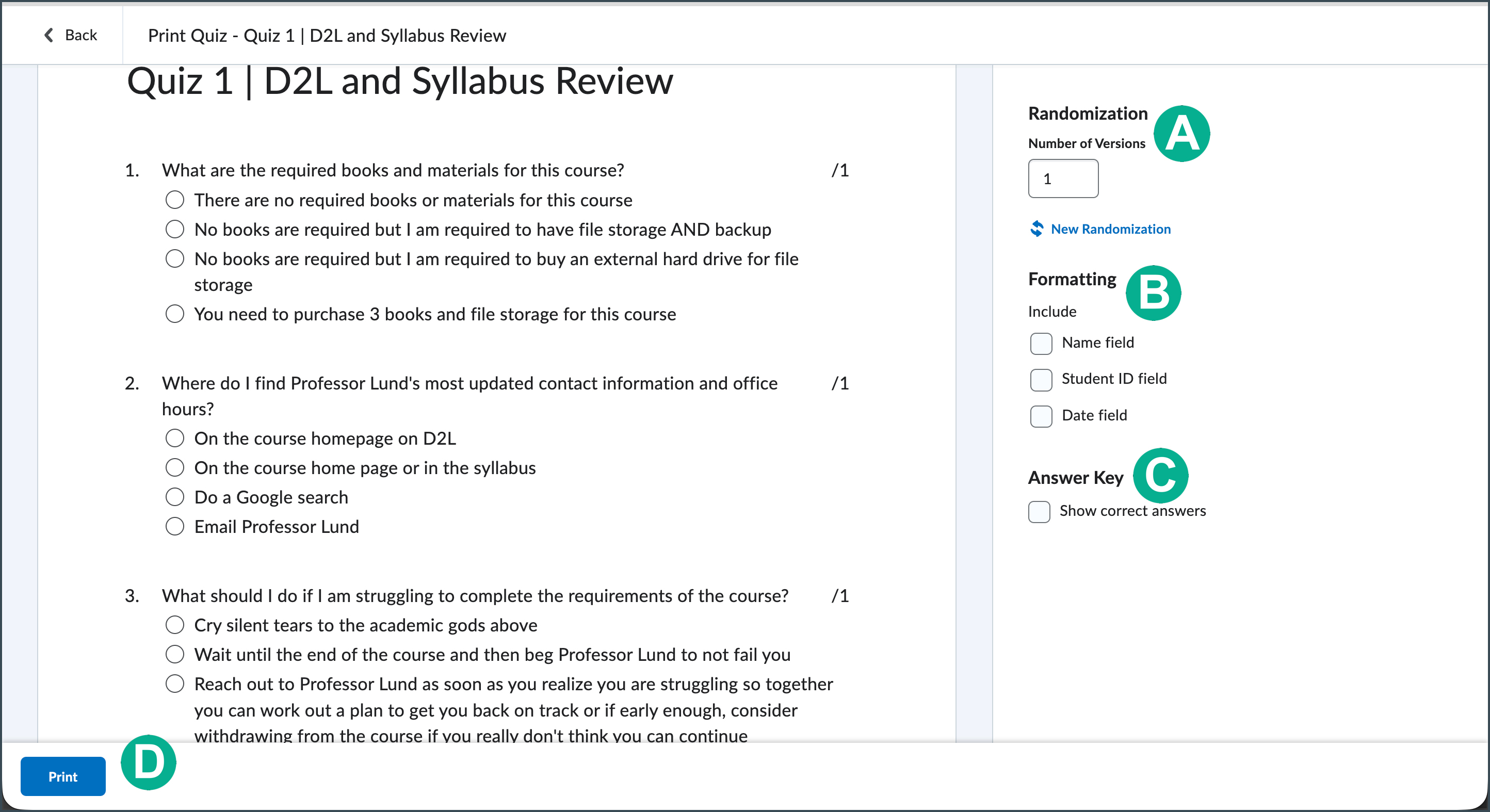
- (Optional) Select a number in the
Randomization box [A] to produce additional versions of the quiz with randomized question order.
- Select
Formatting to include [B].
- Name field includes the student name.
- Student ID field includes the student ID number.
- Date field includes the date stamp.
- Select
Answer Key [C] to include an answer key in the printout.
- Select
Print
[D].
- The computer’s print dialog screen opens. Select options and print.