The Content tool allows instructors to view statistics on how students have interacted with their course content, either by individual students or for the entire class.
Open Content Reports
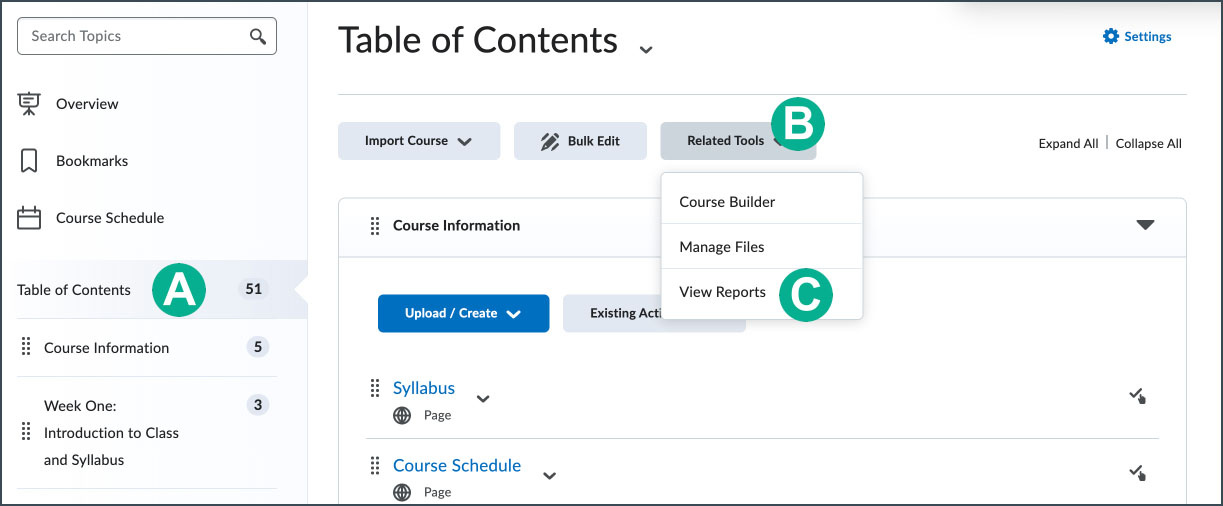
- Select Content.
- Select Table of Contents [A].
- Select Related Tools [B].
- Select View Reports [C].
Access course information about specific modules or topics
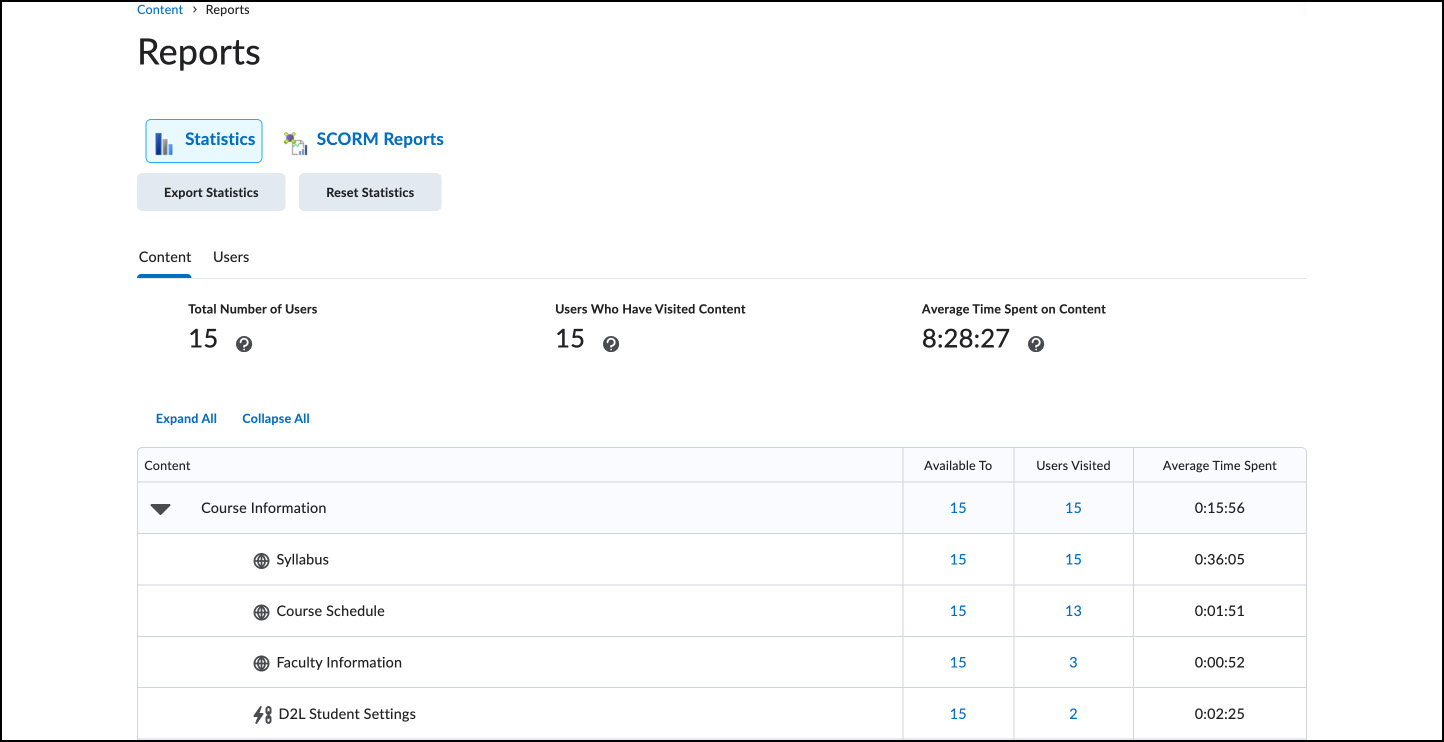
By default, the report shows a list of content modules and topics with columns showing how many students
can access the page ("Available to"), how many
have accessed the page ("Users Visited"), and the average time spent on the page. Instructors can drill further to learn more about a specific module or topic in Content:
- Select either the “Available to” or “Users Visited” link for a specific page in Content.
- The detailed content report will display:
- Available [A] (a Yes/No value indicating its availability for a specific student)
- Last Visited [B] (showing a Date/Time each student last visited the Content)
- Number of Visits [C]
- Total Time Spent [D]
- Average Time Spent per visit [E]
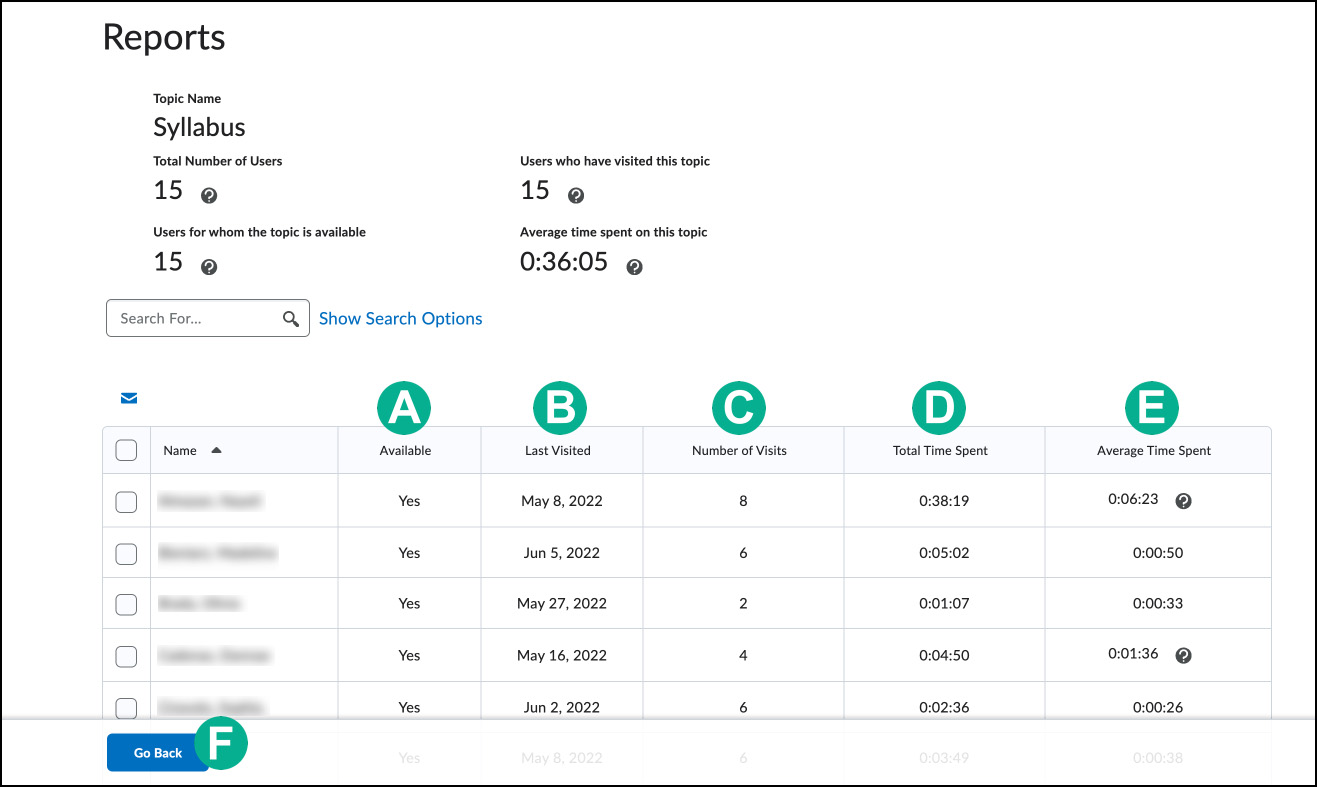
- Select Go Back [F] to return to the default Content Report home.
Access Information About Users
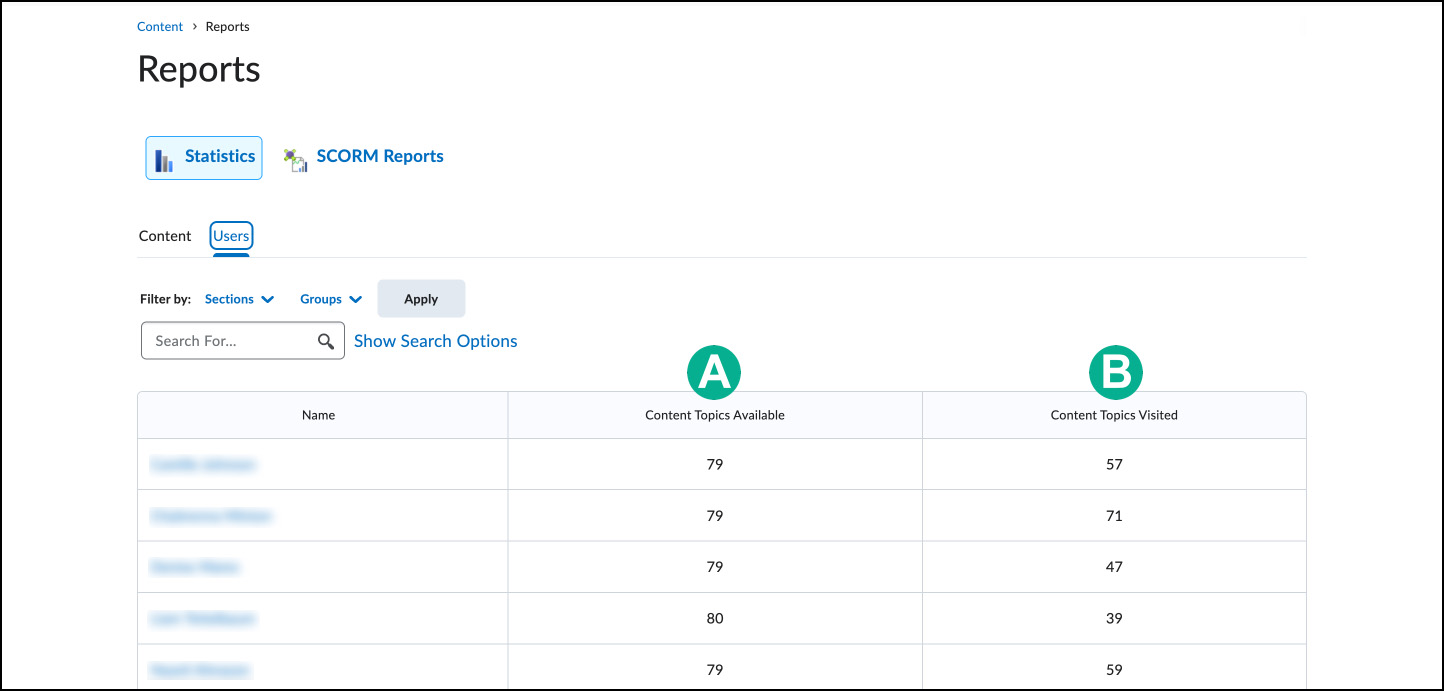
Select the Users tab from the default Content Report to access a simple two-column table, showing:
- Content Topics Available to each student [A]
- Content Topics Visited by each student [B]
Export or Reset Statistics
Exporting Statistics
Select the Export Statistics button to generate a CSV version of the data displayed in the Content Reports. A separate window will open, and a link will be provided in that window to download the exported file.
Resetting Statistics
It is not recommended to use the Reset Statistics button, as it will delete all of the statistics for the course.
View SCORM Reports
Instructors who are using SCORM tools in their courses have access to some additional reporting features based on the individual activities.
- Select SCORM Reports.
- Detailed data is available by assignment, offering:
- The number of user attempts on the object.
- The number of attempts completed. Some attempts appear as incomplete if a user ends the attempt without completing the object.
- The number of attempts passed, the passing score, and the average score.
- The average time spent on the object.
- If an export of this data is desired, instructors may select Export Report.