Simple Syllabus is a platform that enables instructors to personalize and publish interactive class syllabi within D2L. Simple Syllabus allows for templates, importing of previously saved content, and a searchable repository for ease of use.
Note: Simple Syllabus is currently available only to departments that have adopted it. Instructors can contact their department chair if interested in adopting Simple Syllabus.
For questions related to Simple Syllabus, contact
CTL@depaul.edu.
Add Simple Syllabus to a Course
- From the course in D2L, select
Content in the navigation bar.
- Navigate to the module in which the syllabus will be linked.
Note: If a module has not been created, follow the directions for
Creating a Content Module.
- Within the module, select
Existing Activities.
- Select
External Learning Tools.
- Select
Simple Syllabus - LTI Advantage.
- The popup window will close, and a link to Simple Syllabus will appear in the module. To rename the link, select the
dropdown arrow next to the link.
- Select
Edit Properties in Place.
- Select the
textbox reading "Simple Syllabus - LTI Advantage" and enter a new title.
- Hit the Enter key on the keyboard.
- Refresh the page to display the new title.
Edit Syllabus
- Select the
Simple Syllabus link added to the Content module.
- Edit the syllabus by modifying any field with a text box.
Note: Some sections are locked and do not allow edits. For questions or concerns about locked sections of a syllabus, please reach out to a department chair.
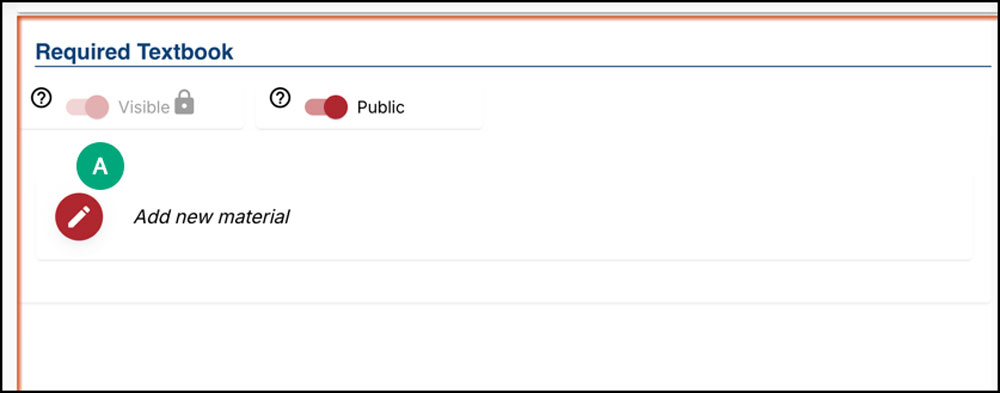
- Syllabus content will auto-save as information is entered. Be sure to modify all required fields as indicated by Simple with the pencil icon [A].
- Once finished, select Submit. Submitting will make the syllabus viewable to students once they have access to the link.
Note: Certain syllabus sections required for courses in the College of Education are not editable by faculty (primarily Standards and Dispositions). If there is a blank required section in a syllabus that cannot be edited, please reach out to
CTL@depaul.edu with the course number.
Most text inputted into Simple Syllabus can be formatted using the options available in the text box, similar to formatting text in D2L or Microsoft Word/Google Docs.
The text in the Course Learning Outcomes/Objectives component cannot be formatted.
- Navigate to a text box.
- Select the appropriate
formatting options [A].
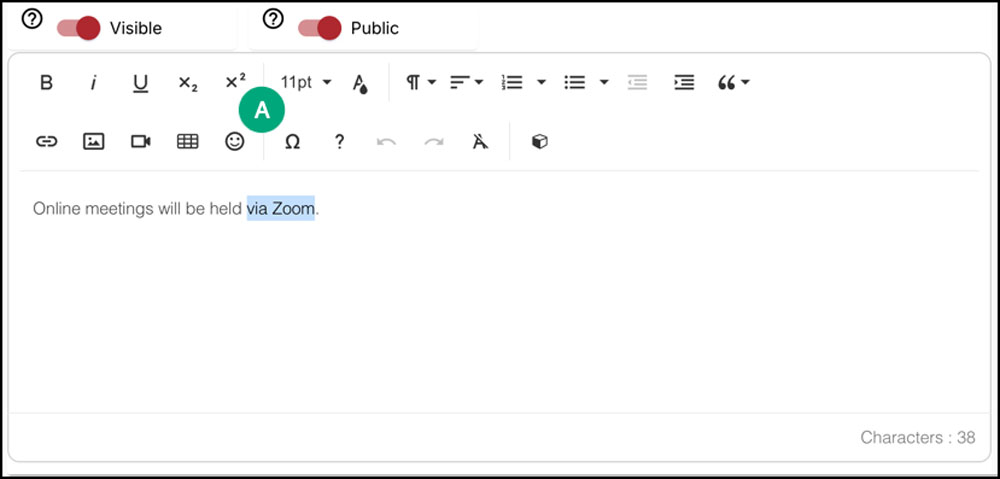
- Input or highlight text to format it.
Note: Some text components (such as "Required Course Materials" and "Course Schedule") must be highlighted in order for the format options to appear.
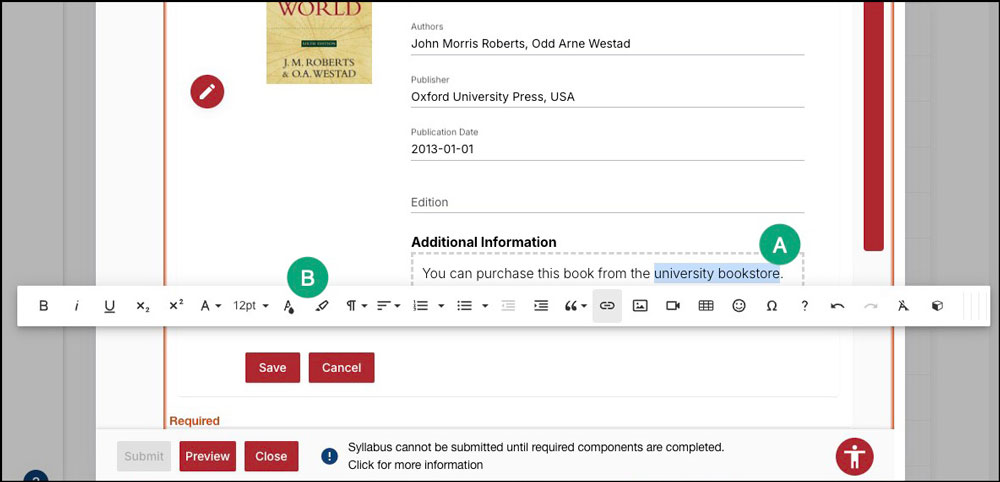
- In the "Required Course Materials" component, only the "Additional Information" box can be formatted. Add text to the "Additional Information" box.
- Highlight the
text to be formatted [A]. The formatting options bar will appear [B].
Note: When formatting text in Simple Syllabus, please remember accessibility guidelines for text:
- When adding sub-headers, use H3 first, and then H4 for any sub-sections of sub-headers.
- Don't use color for emphasis.
- Include header rows for any tables.
Check for Accessibility
Templates created in Simple Syllabus are checked for accessibility before being published, but it is in the instructors responsibility to ensure no accessibility issues are added during the editing of the syllabus. The easiest way to check for, and resolve, accessibility issues is using the accessibility checker.
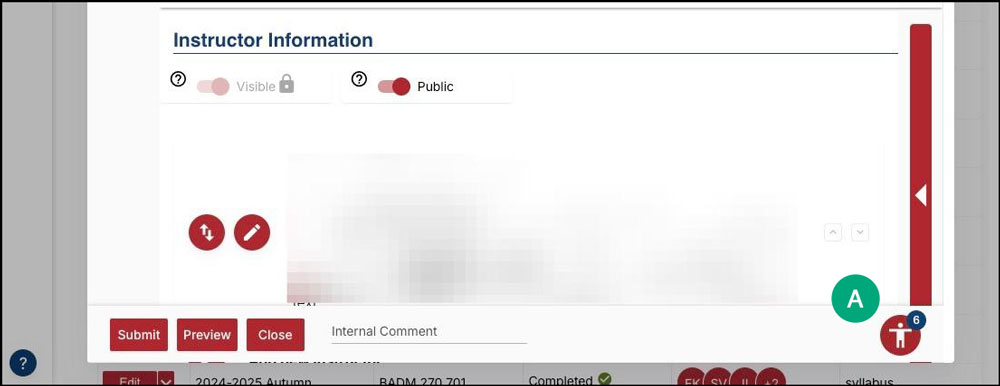
- Within Simple Syllabus, select the
button that looks like a person [A].
- The accessibility checker will then walk through each accessibility issue, and provide ways to correct these issues. Aim to have 0 accessibility issues in the syllabus.
Publish Syllabus
- Before publishing the syllabus, preview what it will look like by selecting
Preview. This will open the syllabus in a new window.
- Once previewed, select
Submit to publish the syllabus.
- A window will pop up with two links:
- One link is to the syllabus. This link can be ignored as the syllabus was already linked within Content using the initial process of adding Simple Syllabus to the course.
- The second is to the PDF copy of the syllabus. (Optional) Download this as needed for personal records.
- Close the popup window.
- (Optional) If needed, edit the syllabus by selecting
Edit Syllabus.
Import Content from Other Syllabi
When teaching a course that was previously taught, and for which a syllabus in Simple Syllabus was published, that information will automatically import into the next term. For a course that does not have a syllabus in Simple Syllabus already, instructors can import elements from other syllabi to reduce the workload.
- After adding a link to Content and navigating to Simple Syllabus, select
Import [A].
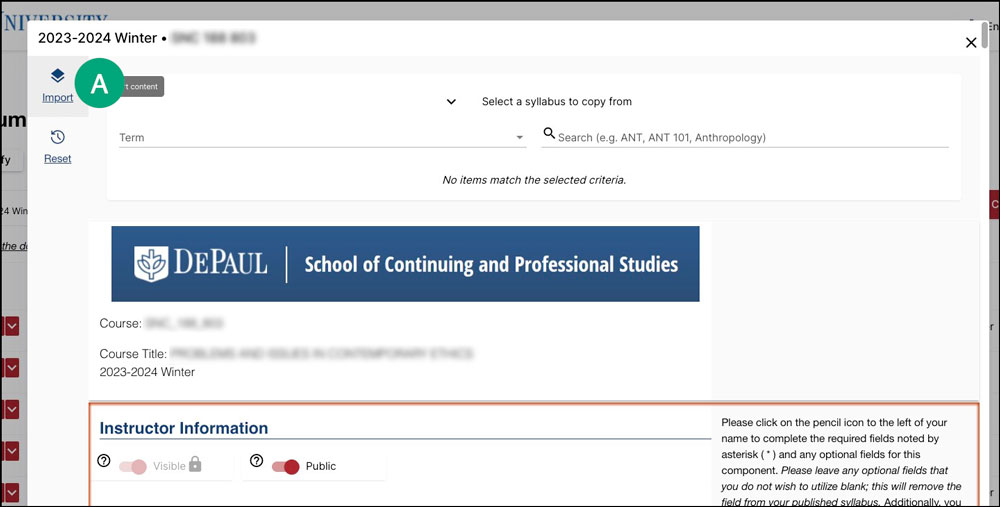
- Use the search filters to search for the course from which to import.
Note: Only information from an instructor's own syllabus can be imported. Instructors do not have access to other instructors' syllabi. If information from another instructor is needed, reach out to them directly.
- Select
Finalize [A] to import the default selections, or toggle
Advanced (select contents to import) [B] to select specific components using the selection options [C]. Then select
Finalize.
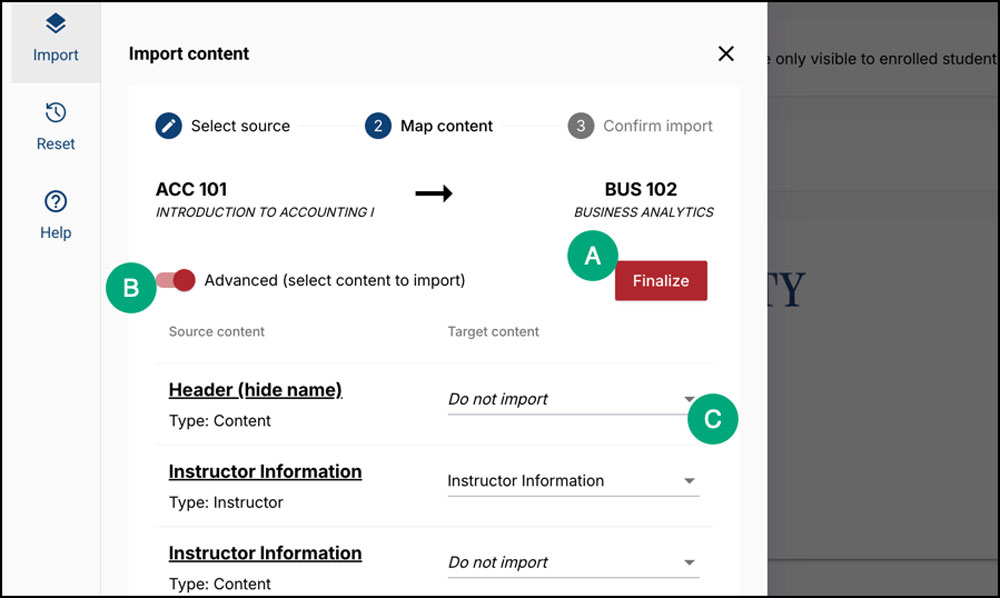
- Review the import selections and select
Start import of the following content.
- Once the import is complete, select
Close. The page will refresh with the imported content visible.
Manage Cross-Listed Courses
In general, students will always see the syllabus for the primary section (i.e. the course in D2L) when they click the link in Content. A syllabus for the other section will only need to be completed if required by the department/program.
For some departments, syllabi are required to be created for non-primary cross listed courses. Because there will not be a course in D2L into which a syllabus will be placed, instructors will need to log into Simple Syllabus separately to create these syllabi.
- Go to
https://depaul.simplesyllabus.com.
- Log in with BlueKey credentials.
- Select the
Home icon [A].
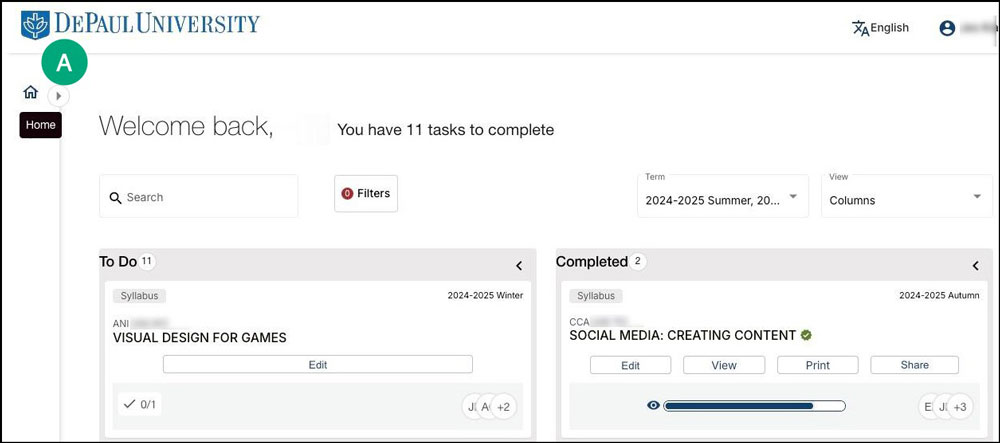
- By default, the system creates a syllabus for every section, regardless of cross list status. Navigate to the area with a list of all syllabi that are not published.
- Select
Edit for the syllabus to be edited [A].
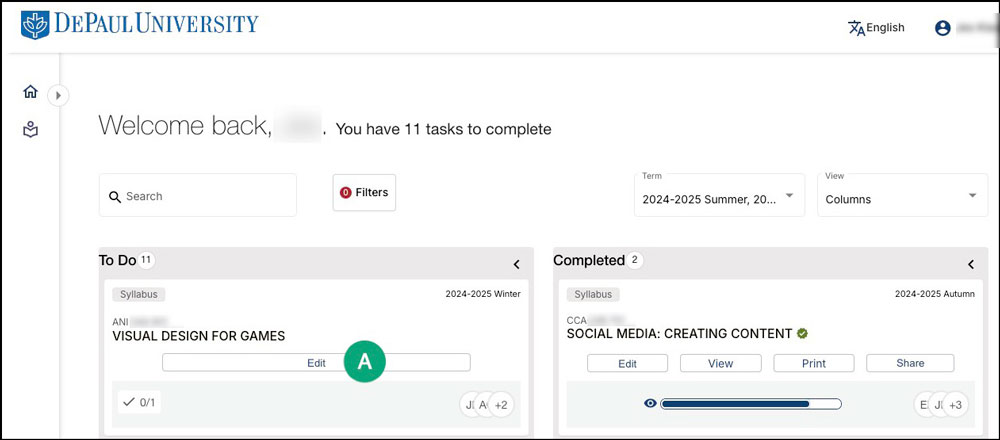
- Create the syllabus as normal by
editing the syllabus or
importing information from other syllabi.
- Once finished, select
Publish.
- In the popup window that opens, select
Copy for the "Syllabus URL".
- Add the copied link to Content using the directions for
adding a link to Content.